
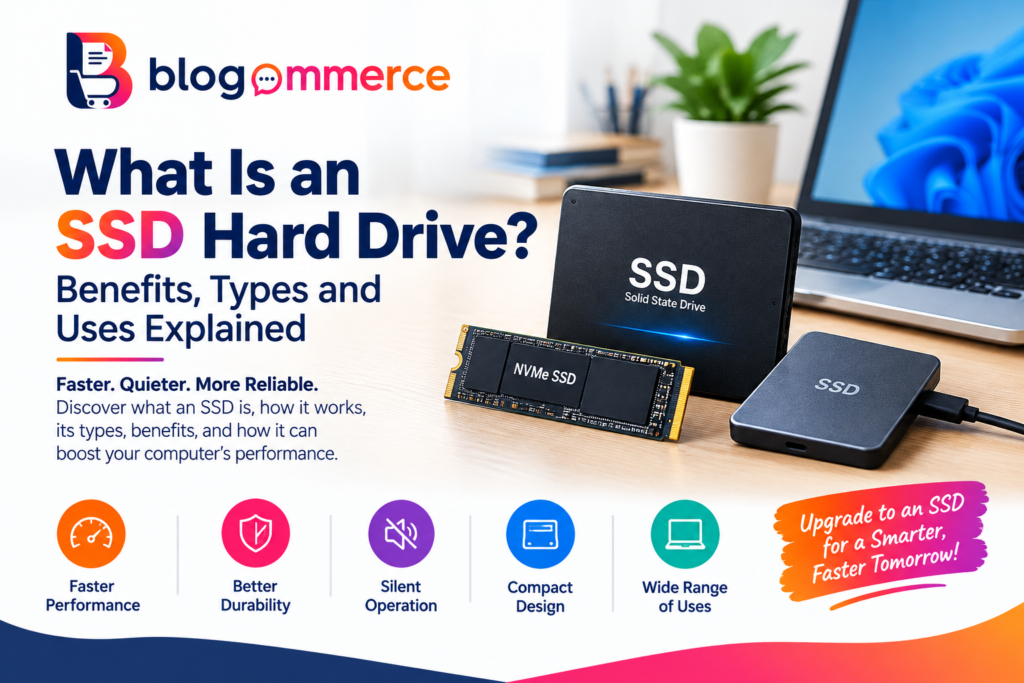
In today’s fast-paced digital world, computer performance depends heavily on storage technology. Whether you use a laptop for work, a desktop for business, or a computer for gaming, having fast and reliable storage can make a significant difference. An SSD hard drive has become a popular storage solution because of its speed, reliability, and efficiency.
But what exactly is an SSD? What is the difference between an SSD drive and a traditional hard disk drive? What types of SSDs are available, and how can you choose the right one for your computer?
This guide explains everything you need to know about SSD technology, including its benefits, types, applications, and how to format an SSD.
What Is an SSD?
SSD stands for Solid-State Drive. An SSD is a storage device that uses flash memory chips to store data. Unlike traditional HDDs, SSDs do not contain spinning disks or mechanical read/write heads.
An ssd drive can store operating systems, applications, documents, photos, videos, games, and other digital files. Because SSDs use electronic memory instead of mechanical components, they can access data much faster than conventional hard disk drives.
An SSD is sometimes commonly referred to as an ssd hard drive, although technically an SSD and HDD use different storage technologies.
How Does an SSD Work?
An SSD stores information on NAND flash memory. When you save a file, the data is written electronically to memory cells inside the drive. When you open the file, the SSD retrieves the information electronically.
This design eliminates the mechanical movement found in HDDs. As a result, an SSD can provide faster boot times, quicker application loading, and improved overall system responsiveness.
For users who frequently transfer large files or run demanding applications, upgrading to an SSD can make a noticeable difference.
SSD vs HDD: What Is the Difference?
The main difference between an SSD and an HDD is how they store and access data.
An HDD uses rotating magnetic platters and a mechanical read/write head, while an SSD uses flash memory. This makes SSDs generally faster and quieter.
Key differences include:
- Speed: SSDs generally provide faster data access and file transfer performance.
- Durability: SSDs have no moving mechanical parts, reducing mechanical failure points.
- Noise: SSDs operate silently because they do not use spinning platters.
- Power consumption: Many SSDs can consume less power than comparable HDDs, depending on the model and workload.
- Size: SSDs are available in compact formats suitable for modern laptops and desktops.
- Responsiveness: Computers equipped with SSD storage typically boot and load applications quickly.
Benefits of an SSD Hard Drive
1. Faster Performance
One of the biggest advantages of an ssd hard drive is speed. An SSD can significantly reduce operating system boot times and application loading times compared with many traditional HDDs.
2. Faster File Transfers
SSDs can provide high-speed data transfers, making them useful for moving large documents, videos, software files, and other data.
3. Better Durability
Because SSDs do not have spinning platters or moving read/write heads, they avoid many mechanical components that can wear out or be damaged by physical movement.
4. Silent Operation
An SSD produces no mechanical noise because it has no rotating disk. This makes it particularly suitable for quiet workstations and modern laptops.
5. Compact Design
Some SSD formats are extremely small. M.2 SSDs, for example, can be installed directly onto compatible computer motherboards without requiring a traditional drive enclosure.
6. Improved Computer Responsiveness
Installing an SSD in a computer can improve everyday responsiveness, including system startup, application launching, file access, and multitasking.
Types of SSDs
There are several types of SSDs available. Choosing the right type depends on your computer’s compatibility and performance requirements.
SATA SSD
SATA SSDs use the SATA interface and are commonly available in a 2.5-inch form factor. They are a popular upgrade option for computers that previously used 2.5-inch HDDs.
M.2 SATA SSD
M.2 SATA SSDs use the compact M.2 physical format but communicate using the SATA interface. They are commonly used in compatible laptops and desktops.
NVMe SSD
NVMe SSDs use the PCIe interface and the NVMe protocol. They are designed for high-speed storage and can deliver substantially higher performance than SATA-based SSDs when the system supports the necessary PCIe generation.
External SSD
An external SSD is housed in an external enclosure and connects to a computer through an interface such as USB. It can be useful for backups, portable storage, transferring large files, and expanding storage capacity.
What Is an SSD Computer?
An ssd computer is a laptop, desktop, workstation, or other computer that uses an SSD as its primary or secondary storage device.
A computer with an SSD can offer faster startup and application loading compared with a system using a conventional HDD, although the actual performance depends on the SSD, processor, memory, motherboard, operating system, and workload.
When purchasing a new computer, checking the type and capacity of the installed SSD is important.
What Is an SSD Device?
An ssd device is any storage hardware that uses solid-state flash memory to store digital information. This can include internal computer SSDs, M.2 drives, SATA SSDs, and external portable SSDs.
SSD devices are used in many applications, including:
- Desktop computers
- Laptops
- Gaming PCs
- Workstations
- Servers
- External storage systems
- Business computers
- Data-intensive applications
How Much SSD Storage Do You Need?
The right storage capacity depends on how you use your computer.
For basic computing, browsing, office applications, and documents, a smaller SSD may be sufficient. Users who store large media files, games, professional applications, or business data may require a larger capacity.
Common capacities include:
- 256GB
- 512GB
- 1TB
- 2TB
- 4TB and above
Before buying an SSD, consider your current storage usage and future requirements.
What Does “Format SSD” Mean?
To format SSD means to prepare the storage drive with a file system so that an operating system can store and organize files on it.
Formatting can erase existing data, depending on the procedure used. Therefore, important files should be backed up before formatting.
The exact formatting process depends on the operating system and whether the SSD is being used as a primary or secondary drive. Users should also make sure they select the correct drive before formatting to avoid accidentally deleting important information.
SSD Uses in Modern Computing
SSDs are used across consumer, professional, and business environments.
Gaming
Gamers use SSDs to reduce game loading times and improve system responsiveness.
Business Computers
Businesses can use SSD storage for office computers, accounting systems, productivity applications, and everyday workloads.
Creative Work
Video editors, designers, photographers, and other professionals can benefit from fast storage when working with large files.
Laptops
SSDs are particularly suitable for laptops because they are compact and have no spinning mechanical components.
Data Storage
External SSDs can be used for portable file storage, backups, and transferring large amounts of data.
How to Choose the Right SSD
Before purchasing an SSD, consider these factors:
1. Compatibility: Check whether your computer supports SATA, M.2 SATA, or NVMe/PCIe storage.
2. Capacity: Select a capacity that meets both your current and expected future needs.
3. Performance: Compare sequential read/write speeds and other specifications relevant to your workload.
4. Endurance: For heavy workloads, check the drive’s endurance rating and warranty information.
5. Form Factor: Make sure the physical size and connector are compatible with your computer.
6. Brand and Warranty: Consider established manufacturers and review warranty terms before purchasing.
Final Thoughts
An SSD is an important part of modern computer storage technology. With fast data access, silent operation, compact designs, and strong everyday performance, SSDs are widely used in laptops, desktops, gaming systems, workstations, and external storage devices.
Whether you are upgrading an older computer or purchasing a new ssd drive, understanding the different types and specifications can help you make an informed choice. From SATA and M.2 drives to high-performance NVMe models, there is an SSD solution for a wide range of computing requirements.
If you are planning to upgrade your storage, compare compatibility, capacity, interface, performance, endurance, and warranty before selecting an ssd hard drive for your system.
Read Our Previous Blogs :-https://blogommerce.com/best-laptop-under-40000/
FOLLOW US ON INSTAGRAM :- BLOGOMMERCE