
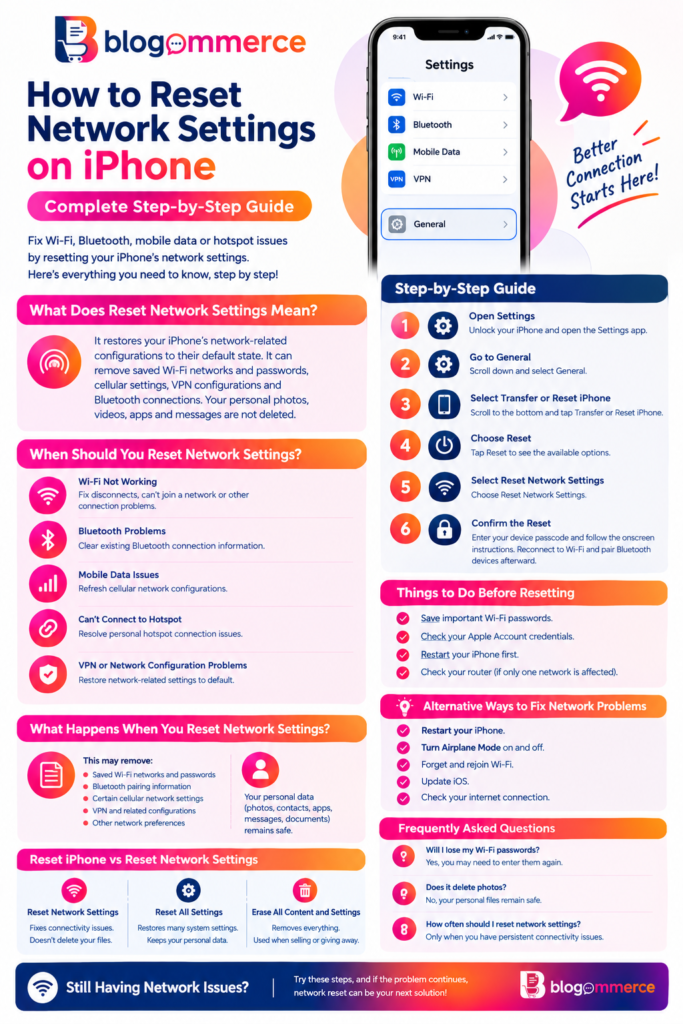
If your iPhone is experiencing Wi-Fi problems, Bluetooth connection issues, mobile data errors, or difficulties connecting to a network, resetting the network settings can often help. An iPhone network settings reset is a useful troubleshooting step when basic solutions such as restarting your device or reconnecting to Wi-Fi do not solve the problem.
In this guide, we will explain how to reset network settings on iPhone, what happens when you reset them, when you should use this option, and the difference between a network reset and a complete Apple iPhone reset.
What Does Reset Network Settings Mean on iPhone?
The Reset Network Settings option restores your iPhone’s network-related configurations to their default state.
It can remove saved Wi-Fi networks and passwords, cellular settings, VPN-related configurations, and Bluetooth connections. Your personal photos, videos, apps, messages, and other personal files are not deleted simply because you reset network settings.
This makes a network reset different from a complete reset iPhone or factory reset.
How to Reset Network Settings on iPhone
Follow these steps to perform an iPhone network settings reset:
Step 1: Open Settings
Unlock your iPhone and open the Settings app.
Step 2: Go to General
Scroll down and select General.
Step 3: Select Transfer or Reset iPhone
Scroll toward the bottom and tap Transfer or Reset iPhone.
Step 4: Choose Reset
Tap Reset to see the available reset options.
Step 5: Select Reset Network Settings
Choose Reset Network Settings.
Step 6: Confirm the Reset
Your iPhone may ask you to enter your device passcode. Follow the onscreen instructions to confirm.
After the reset is completed, you may need to reconnect to your Wi-Fi network and pair Bluetooth devices again.
When Should You Reset Network Settings on iPhone?
An iPhone network reset can be useful in several situations.
1. Wi-Fi Is Not Working
If your iPhone repeatedly disconnects from Wi-Fi, cannot join a network, or shows connection problems, resetting network settings may resolve corrupted or incorrect network configurations.
2. Bluetooth Problems
If Bluetooth devices are not connecting correctly, a network settings reset can clear existing Bluetooth-related connection information.
3. Mobile Data Issues
If cellular data is not working properly despite having an active mobile plan, resetting network settings may help refresh network configurations.
4. iPhone Cannot Connect to a Hotspot
If your iPhone has trouble connecting to a personal hotspot, resetting network settings can be one troubleshooting option.
5. VPN or Network Configuration Problems
Incorrect network configurations can sometimes interfere with internet access. A network reset can restore network-related settings to their default configuration.
What Happens When You Reset Network Settings?
Before performing an iPhone network settings reset, it is important to understand what will change.
The reset can remove:
- Saved Wi-Fi networks and passwords
- Bluetooth pairing information
- Certain cellular network settings
- VPN and related network configurations
- Other network preferences
Your personal data generally remains on the device. Your photos, contacts, applications, messages, and documents are not erased by simply selecting Reset Network Settings.
However, you should be prepared to reconnect your iPhone to your preferred networks afterward.
How to Reset iPhone Completely
Many people search for how to reset iPhone when they actually need to fix a network problem. A complete iPhone reset is different from resetting network settings.
If you want to erase an iPhone before selling, giving it away, or starting fresh, you may need the Erase All Content and Settings option instead.
The general path is:
Settings → General → Transfer or Reset iPhone → Erase All Content and Settings
A complete reset can remove personal content and settings from the device, so make sure important information is backed up before proceeding.
Reset iPhone vs Reset Network Settings
Understanding the difference between these options can prevent accidental data loss.
Reset Network Settings
This is primarily used for troubleshooting connectivity issues. It affects network-related configurations rather than deleting your personal files.
Reset All Settings
This restores many system settings to their defaults while generally keeping your personal data.
Erase All Content and Settings
This is a much more extensive Apple iPhone reset. It removes the content and settings from the device and is commonly used when preparing an iPhone for a new owner.
Therefore, if your only problem is Wi-Fi, Bluetooth, or mobile connectivity, you generally should not jump directly to a complete reset iPhone.
Things to Do Before Resetting Network Settings
Although a network reset does not normally erase your personal files, it is still useful to prepare your device.
Save Important Wi-Fi Passwords
Make sure you know the passwords for important Wi-Fi networks because previously saved network information may be removed.
Check Your Apple Account
Ensure you know your Apple Account credentials, particularly if you are considering a more extensive device reset.
Restart Your iPhone First
A simple restart can sometimes resolve temporary network problems without changing any settings.
Check Your Router
If only one Wi-Fi network is affected, the problem may be with the router or internet service rather than your iPhone.
Alternative Ways to Fix iPhone Network Problems
Before performing an iPhone network settings reset, try some basic troubleshooting methods.
Restart Your iPhone
Turn your iPhone off and back on to clear temporary software issues.
Turn Airplane Mode On and Off
Enable Airplane Mode for a short period and then disable it. This can refresh wireless connections.
Forget and Rejoin Wi-Fi
You can forget a problematic Wi-Fi network and reconnect using the correct password.
Update iOS
Check whether your iPhone has an available software update. Keeping iOS updated can help maintain compatibility and security.
Check Your Internet Connection
Test another device on the same Wi-Fi network. If multiple devices have connectivity problems, your router or internet service may be responsible.
Does Resetting Network Settings Delete Everything on iPhone?
No. Reset Network Settings is not the same as a factory reset.
The purpose of this feature is to restore network-related configurations. Your personal files and apps are not normally erased when you choose this option.
However, network information such as saved Wi-Fi connections and Bluetooth pairings may need to be configured again.
How Often Should You Reset Network Settings?
There is no need to regularly reset your network settings if your iPhone is working normally.
Consider using this troubleshooting option when you have persistent connectivity problems that have not been resolved through simpler methods.
Repeated resets are unlikely to provide a long-term solution if the underlying issue is caused by a faulty router, mobile network outage, hardware problem, or another issue.
Frequently Asked Questions
How do I reset network settings on iPhone?
Go to Settings → General → Transfer or Reset iPhone → Reset → Reset Network Settings, then follow the onscreen instructions.
Does reset network settings delete photos?
A network settings reset does not normally delete your photos, videos, apps, messages, or other personal files.
Will I lose my Wi-Fi passwords?
Saved Wi-Fi network information can be removed, so you may need to enter your Wi-Fi passwords again.
What is the difference between reset iPhone and reset network settings?
Reset Network Settings focuses on connectivity configurations, while a complete iPhone reset can erase the device’s content and settings.
Should I reset my iPhone if Wi-Fi is not working?
You can try simpler troubleshooting methods first. If the problem continues, Reset Network Settings can be considered before performing a complete Apple iPhone reset.
Conclusion
Knowing how to reset network settings on iPhone can be helpful when dealing with persistent Wi-Fi, Bluetooth, cellular data, or hotspot problems. A network settings reset is different from a complete reset iPhone because it focuses specifically on network-related configurations.
If basic troubleshooting does not solve your connectivity problem, resetting network settings can be a useful next step. Always understand which reset option you are selecting, especially when considering a complete Apple iPhone reset, because different reset options have different effects on your device.
Read Our Previous Blogs :- https://blogommerce.com/microwave-oven/
FOLLOW US ON INSTAGRAM :- BLOGOMMERCE