
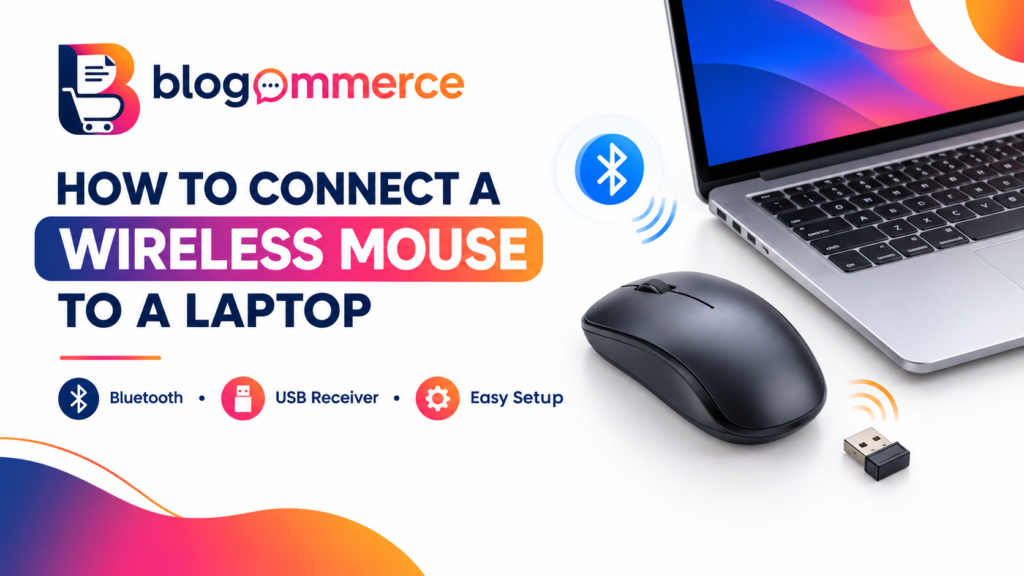
Using a laptop touchpad for long hours can sometimes feel uncomfortable, especially when working, studying, browsing the internet, or playing games. A wireless mouse offers greater convenience, flexibility, and a comfortable way to control your laptop without dealing with tangled cables.
If you are wondering how to connect a wireless mouse to a laptop, the process is simple. Most wireless mice connect using either Bluetooth technology or a small USB receiver. Both methods allow you to control your laptop cursor without a wired connection.
In this guide, we will explain how to connect a wireless mouse, troubleshoot common connection problems, and choose the right wireless mouse for laptop use.
What Is a Wireless Mouse?
A wireless mouse is a computer accessory that allows users to control a laptop or desktop without connecting a physical cable. It communicates with the computer through Bluetooth or a wireless USB receiver.
A cordless mouse is useful for students, professionals, office workers, travellers, and gamers who want a cleaner workspace and more freedom of movement.
Wireless mice are available in different sizes, designs, and price ranges. Depending on your requirements, you can choose a basic laptop mouse for everyday activities or an advanced model with adjustable sensitivity and additional buttons.
Types of Wireless Mouse
Before connecting your mouse, identify which type you have.
1. USB Receiver Wireless Mouse
This type of wireless mouse comes with a small USB receiver, also called a dongle. The receiver plugs into your laptop’s USB port and establishes a wireless connection.
Best for: Office work, everyday browsing, and users who prefer quick setup.
2. Bluetooth Wireless Mouse
A Bluetooth mouse connects directly to your laptop through Bluetooth settings. It generally does not require a separate receiver, making it useful when USB ports are limited.
Best for: Modern laptops, portable workstations, and users who want to keep their USB ports available.
How to Connect a Wireless Mouse to a Laptop Using a USB Receiver
Follow these simple steps to connect a receiver-based wireless mouse.
Step 1: Check the mouse battery
Insert the required battery or charge the mouse if it has a rechargeable battery. Turn on the power switch, usually located on the underside.
Step 2: Find the USB receiver
Look for the small receiver supplied with your mouse. Some manufacturers store it inside the battery compartment.
Step 3: Plug the receiver into your laptop
Insert the USB receiver into an available USB port. If your laptop only has USB-C ports, you may need a compatible adapter.
Step 4: Wait for the connection
Your laptop will generally recognise the receiver automatically. Allow a few seconds for the device to initialise.
Step 5: Test the mouse
Move the mouse and check whether the cursor responds. If it works, your wireless mouse is ready to use.
For compatible receiver-based models, this process usually requires no manual Bluetooth pairing.
How to Connect a Bluetooth Wireless Mouse to a Laptop
If your cordless mouse uses Bluetooth, follow the steps below.
On Windows 11
- Turn on your wireless mouse.
- Activate pairing mode using the mouse’s Bluetooth or pairing button. Refer to the manufacturer’s instructions if necessary.
- Open Settings on your laptop.
- Select Bluetooth & devices.
- Switch Bluetooth on.
- Select Add device, then choose Bluetooth.
- Select your mouse from the available devices.
- Follow any additional instructions to complete pairing.
Once connected, move the mouse to check whether the cursor responds correctly.
On Windows 10
- Turn on the mouse and activate pairing mode.
- Open Settings on your laptop.
- Select Devices, followed by Bluetooth & other devices.
- Enable Bluetooth.
- Select Add Bluetooth or other device.
- Choose Bluetooth and select your mouse.
- Complete the pairing process.
These steps follow Microsoft’s general Bluetooth pairing guidance.
- Switch on your Bluetooth mouse.
- Put the mouse into pairing mode.
- Open the Apple menu and select System Settings.
- Click Bluetooth.
- Find your mouse under nearby devices.
- Click Connect.
After pairing, test the mouse to ensure it works correctly.
Common Wireless Mouse Problems and Their Solutions
Sometimes, a wireless mouse may not connect immediately. Here are some common issues and ways to resolve them.
1. The Mouse Is Not Turning On
Check whether the battery is installed correctly. Replace disposable batteries or recharge the mouse if required. Also, ensure that the power switch is turned on.
2. The Laptop Cannot Detect the Mouse
For a Bluetooth mouse, make sure pairing mode is active and Bluetooth is enabled on your laptop. For a USB receiver mouse, reconnect the receiver or try another USB port.
3. The Mouse Cursor Is Not Moving
Check the mouse sensor and the surface you are using. Clean the sensor gently and try a suitable mouse pad.
4. The Mouse Keeps Disconnecting
Low battery power, wireless interference, or a loose USB receiver may cause connection problems. Recharge the mouse, reconnect the receiver, and keep the mouse within its recommended operating range.
5. The Mouse Is Connected but Not Working
Restart your laptop and reconnect the mouse. If the issue continues, check the manufacturer’s instructions and update the relevant device drivers if necessary.
How to Choose the Best Wireless Mouse for a Laptop
Before purchasing a wireless mouse, consider how you plan to use it.
Connectivity
Choose a Bluetooth mouse if you want to connect without a dedicated receiver. A USB receiver model can be a convenient alternative if your laptop has a compatible port.
Comfort and Design
Look for a comfortable shape and size that suits your hand. Compact models are convenient for travelling, while larger ergonomic mice may be preferable for extended work sessions.
Battery Life
Compare battery life and charging options. Rechargeable mice reduce the need to replace disposable batteries, while replaceable-battery models can be convenient when you need to swap batteries quickly.
Sensitivity and Performance
For office work, browsing, and studying, a standard optical mouse is often sufficient. Gamers and users who perform precision tasks may prefer adjustable DPI settings and additional buttons.
Wireless Mouse Price
The wireless mouse price varies according to the brand, connectivity, design, features, and intended use. Basic models are generally suitable for everyday tasks, while premium and gaming models may cost more.
Compare specifications, warranty coverage, and compatibility before making a purchase. Choose a wireless mouse that matches your needs and budget rather than selecting a model based on price alone.
Benefits of Using a Wireless Mouse for a Laptop
A wireless mouse offers several advantages over relying entirely on a laptop touchpad.
- Greater convenience: Navigate documents, websites, and applications comfortably.
- Less cable clutter: Keep your desk neat and organised.
- Easy portability: Carry a compact laptop mouse when travelling or working remotely.
- Flexible usage: Work comfortably at a desk or other suitable surface.
- Multiple options: Choose from basic, ergonomic, rechargeable, and gaming models.
A wireless mouse can be a practical accessory for students, professionals, and anyone who regularly uses a laptop.
Frequently Asked Questions (FAQs)
1. How do I connect a wireless mouse to my laptop?
You can connect it using a USB receiver or Bluetooth. Plug in the receiver and turn on the mouse, or enable Bluetooth and pair the mouse through your laptop’s settings.
2. Can I connect a wireless mouse without a USB receiver?
Yes. You can connect a Bluetooth wireless mouse without a dedicated USB receiver, provided your laptop supports Bluetooth.
3. Why is my wireless mouse not connecting to my laptop?
Common causes include a low battery, inactive pairing mode, disabled Bluetooth, a disconnected USB receiver, or compatibility issues. Check the connection type and battery before troubleshooting further.
4. Is a Bluetooth mouse better than a USB wireless mouse?
Neither is universally better. Bluetooth saves a USB port, while a USB receiver can offer straightforward setup. The best choice depends on your laptop, preferred connection method, and mouse compatibility.
5. What is the average wireless mouse price?
The price depends on the brand, features, and model. Basic mice are generally more affordable than ergonomic and gaming models. Check current listings to compare prices and specifications.
6. Can I use the same wireless mouse with different laptops?
Many wireless mice can be used with different compatible laptops. However, you may need to pair the mouse again or move its USB receiver between devices. Some models support switching between multiple devices.
Conclusion
Learning how to connect a wireless mouse to a laptop is straightforward once you identify whether your device uses Bluetooth or a USB receiver. With the correct setup, you can enjoy comfortable navigation, improved convenience, and a more organised workspace.
When choosing a wireless mouse, consider connectivity, battery life, comfort, compatibility, and wireless mouse price. Whether you need a simple cordless mouse for daily tasks or an advanced wireless mouse for laptop productivity, selecting the right model can improve your overall computing experience.
Explore computer accessories on Blogommerce to compare available options and find a laptop mouse that suits your everyday needs.
Read Our Previous Blogs :- https://blogommerce.com/gaming-chair-under-2000-blogommerce/
FOLLOW US ON INSTAGRAM :- BLOGOMMERCE